Auto Scaling the infrastructure in AWS - Learn Amazon Web Services Autoscaling
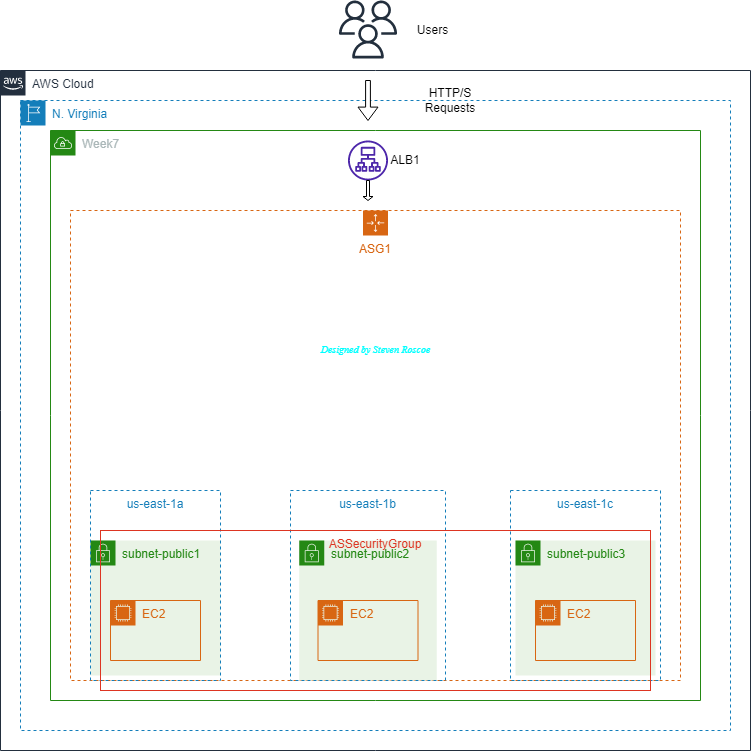
Week 7 in AWS and we are now getting down to the good stuff! AWS auto-scaling monitors your applications and automatically adjusts in capacity to maintain steady, predictable performance for the lowest possible cost. You can set up application scaling for multiple resources across multiple services in mere minutes.
Prerequisites:
AWS Account
Steps:
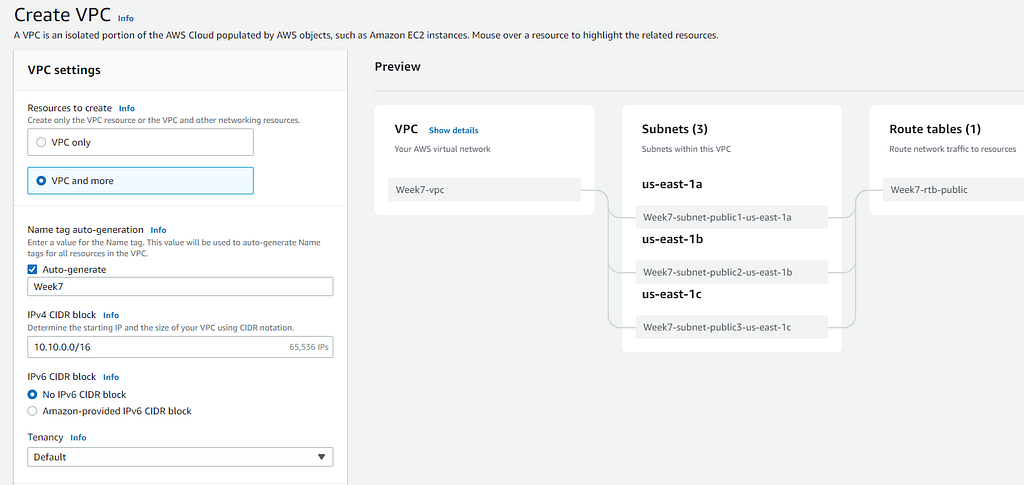
- Create a VPC with CIDR 10.10.0.0/16
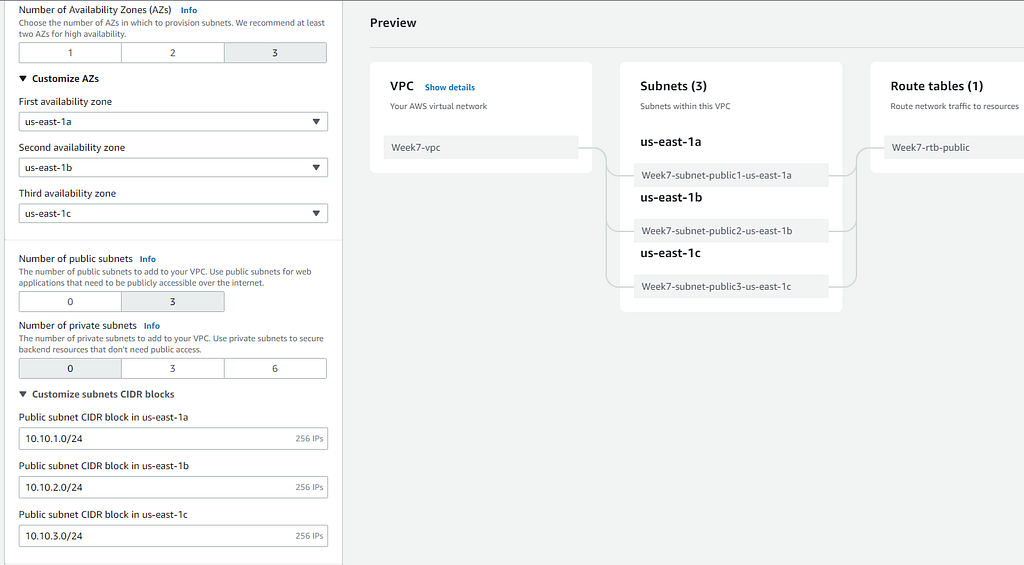
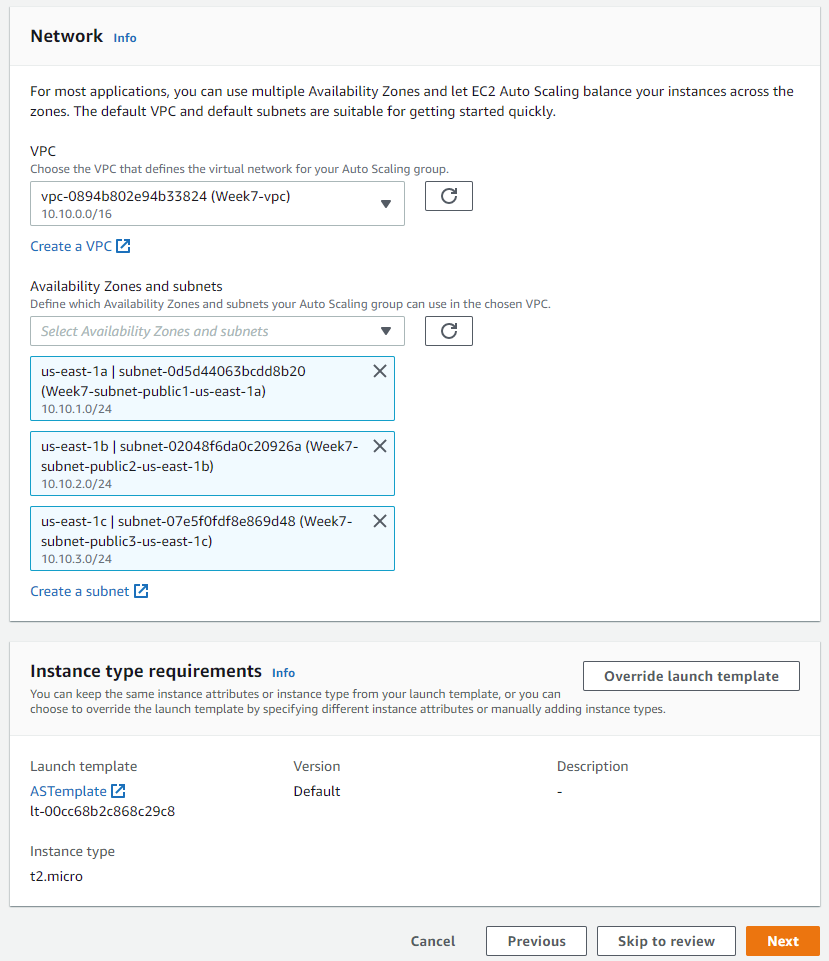
- Create three public subnets with 10.10.1.0/24 & 10.10.2.0/24 & 10.10.3.0/24
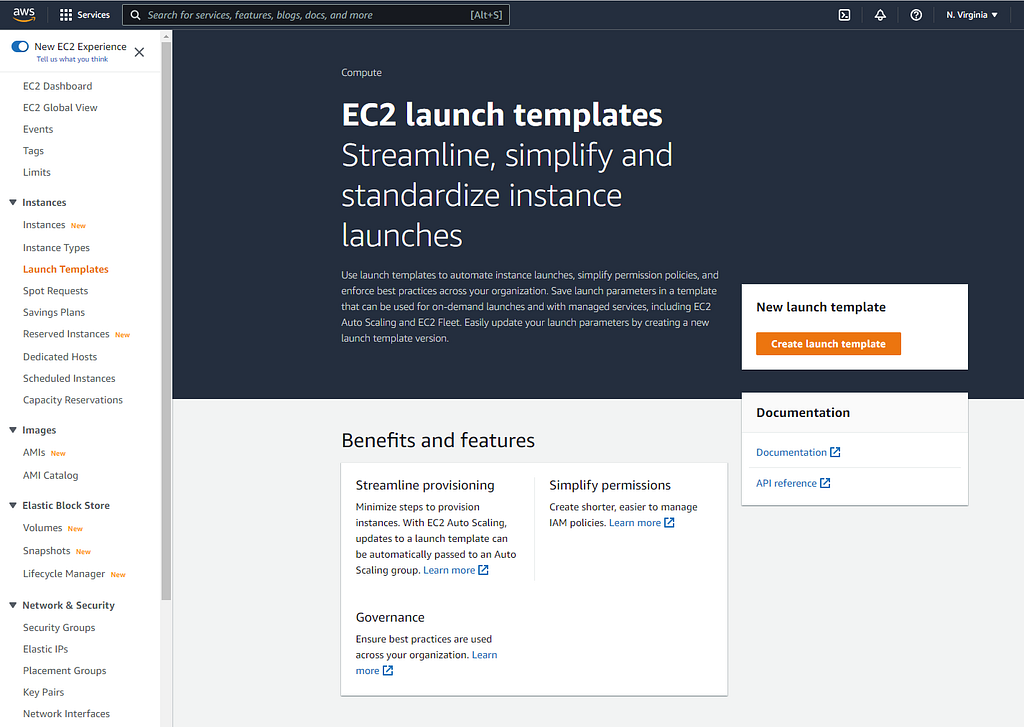
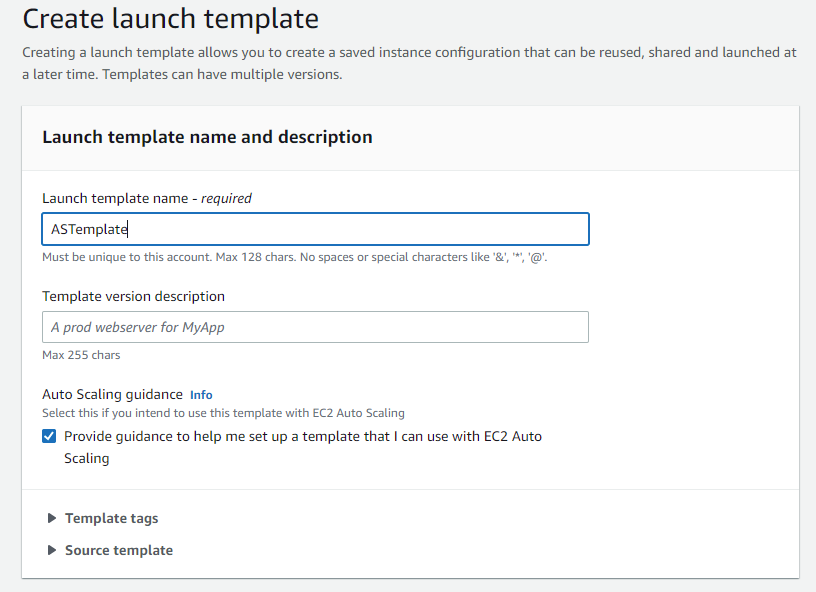
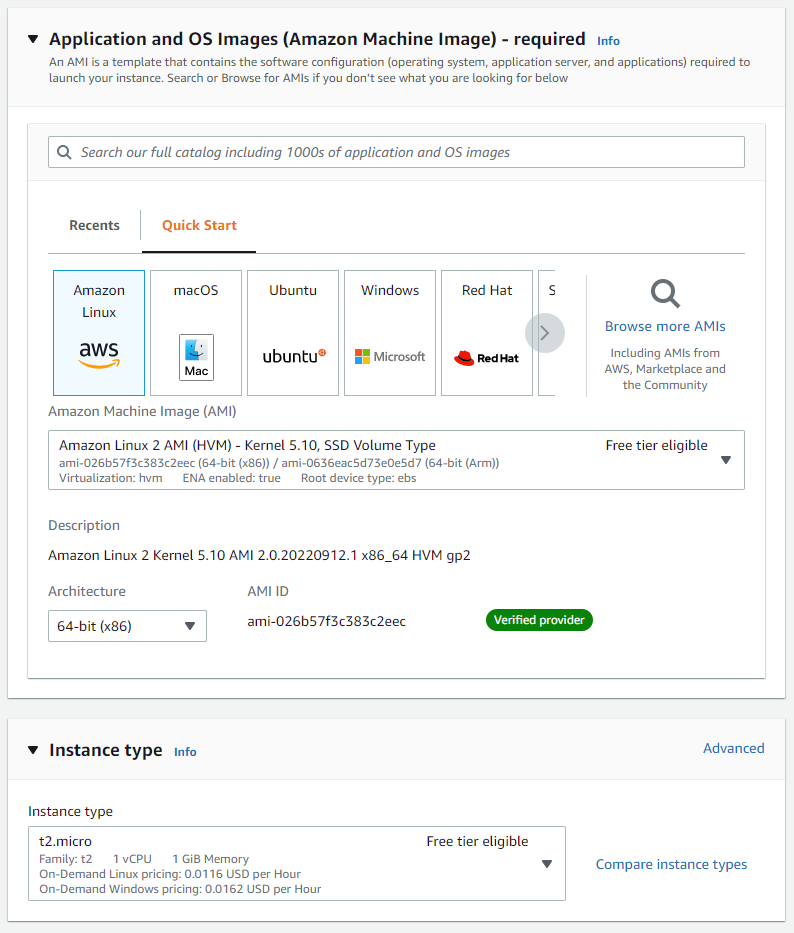
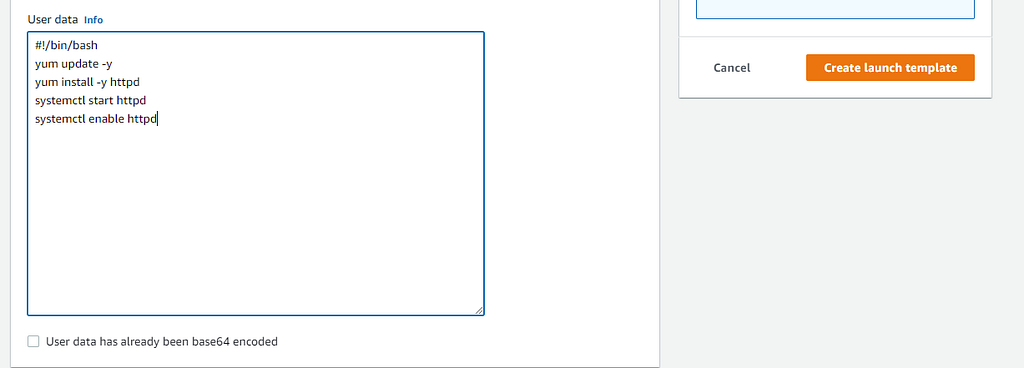
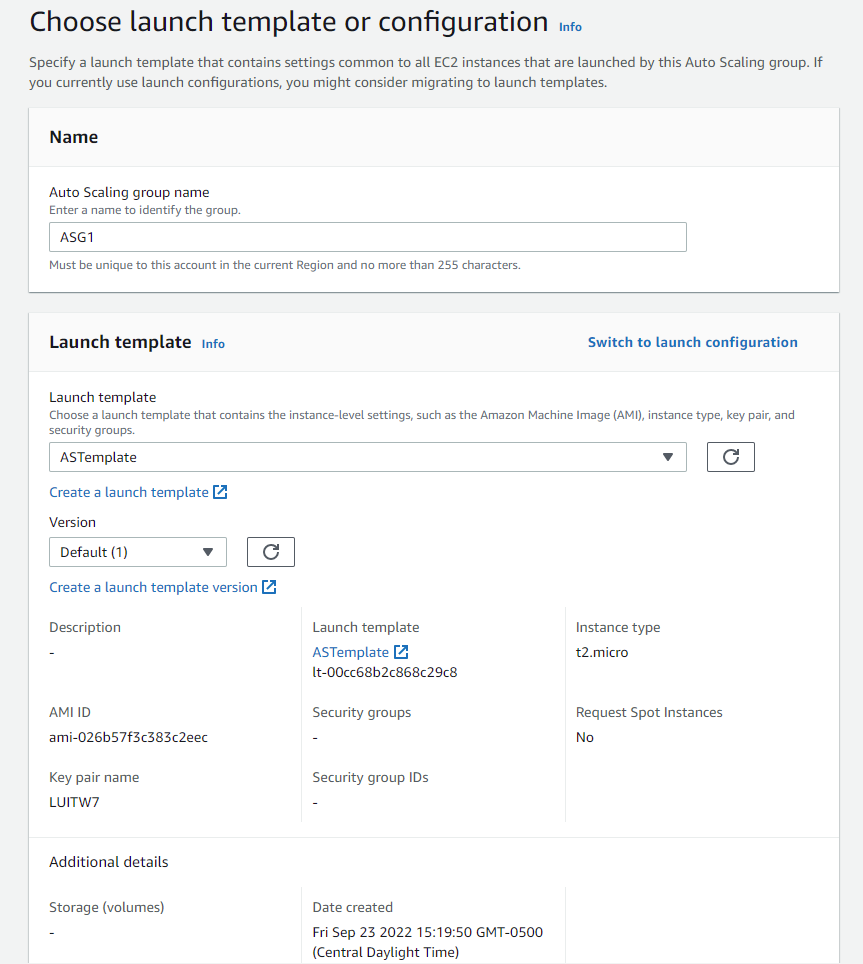
- Create an auto-scaling group using t2.micro instances. All instances should have apache installed on each instance with the ability to check any random IP address and be able to produce a test page. Ensure the auto-scaling group is using the public subnets from #2
- The auto-scaling min and max should be 2 and 5
- Create an Application Load Balancer to distribute traffic to the auto-scaling group
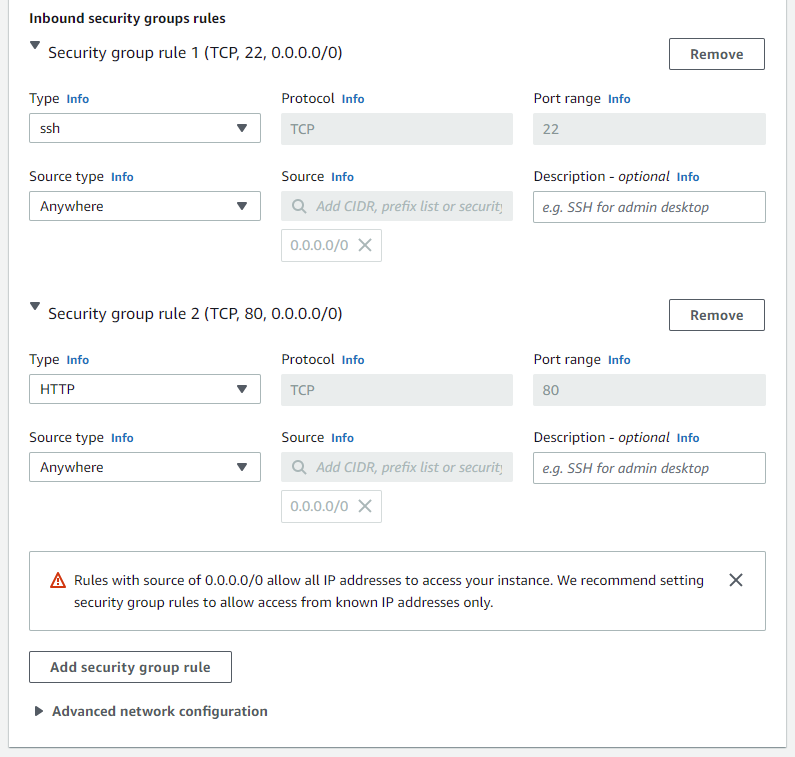
- Create web server security group that allows inbound traffic from HTTP from your Application Load Balancer
- Create a load balancer security group that allows inbound traffic from HTTP from 0.0.0.0/0
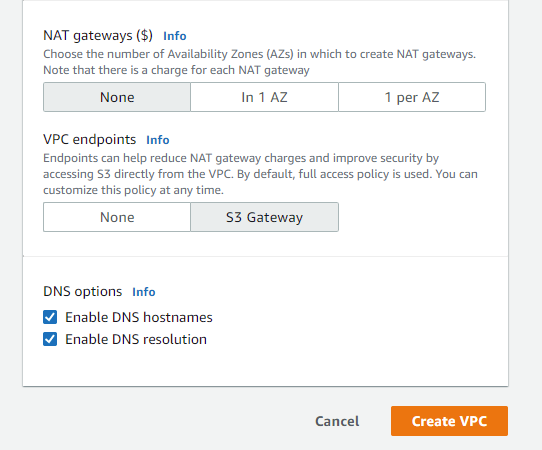
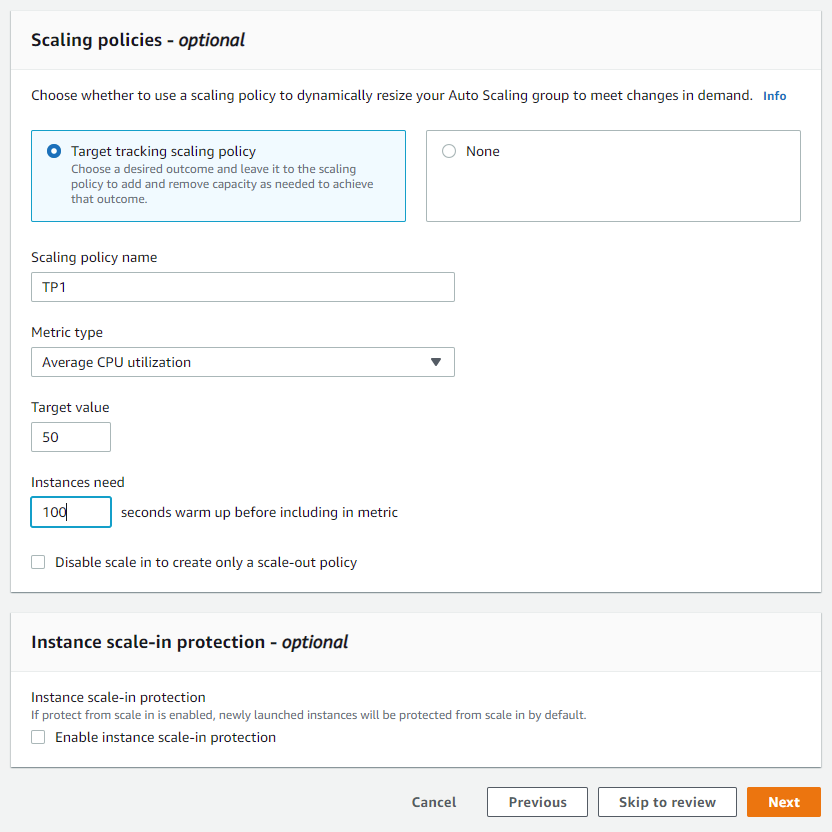
Head over to the VPC pane and let's create a VPC. Click on VPC and more and start filling in the information:


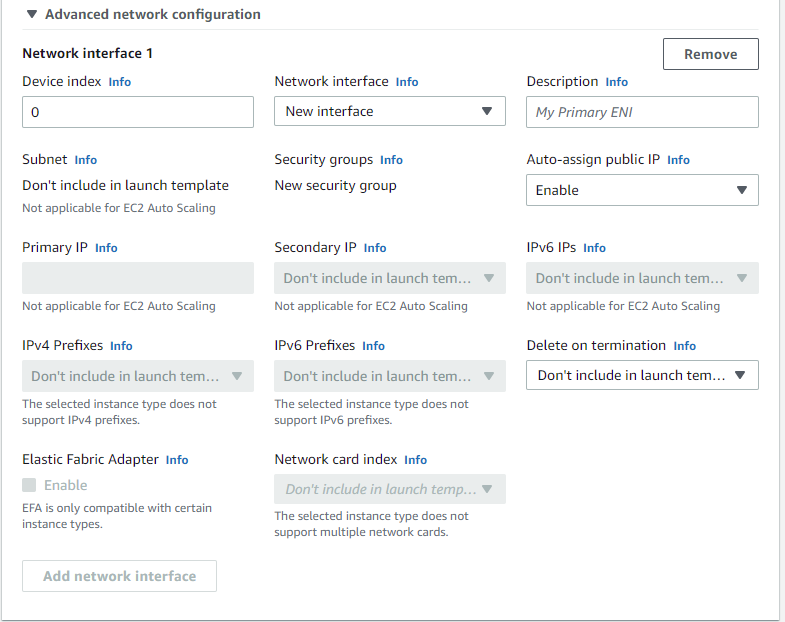

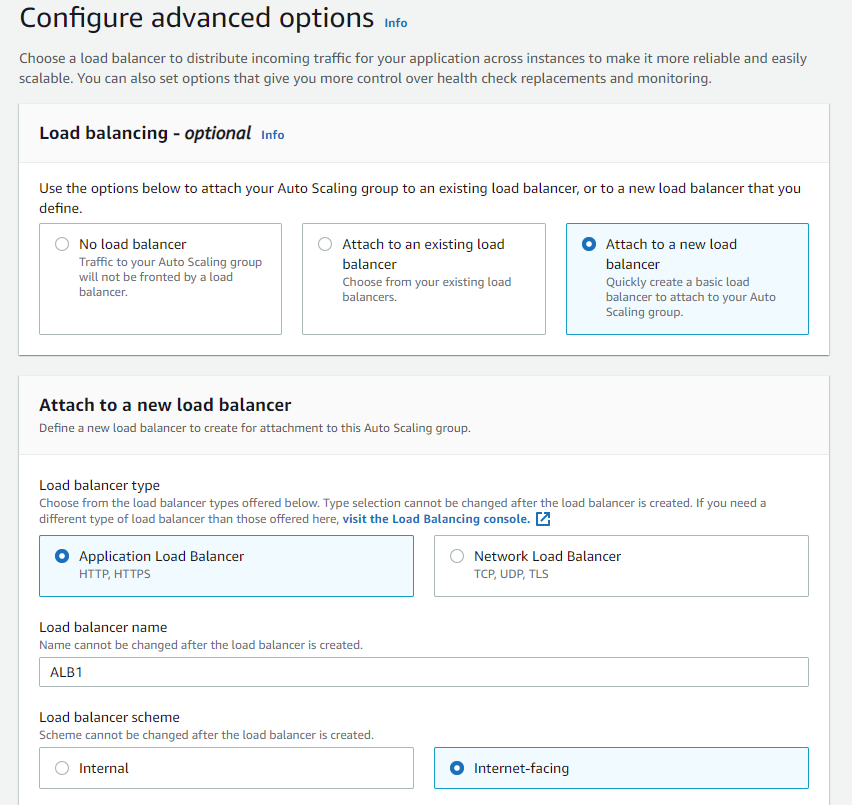
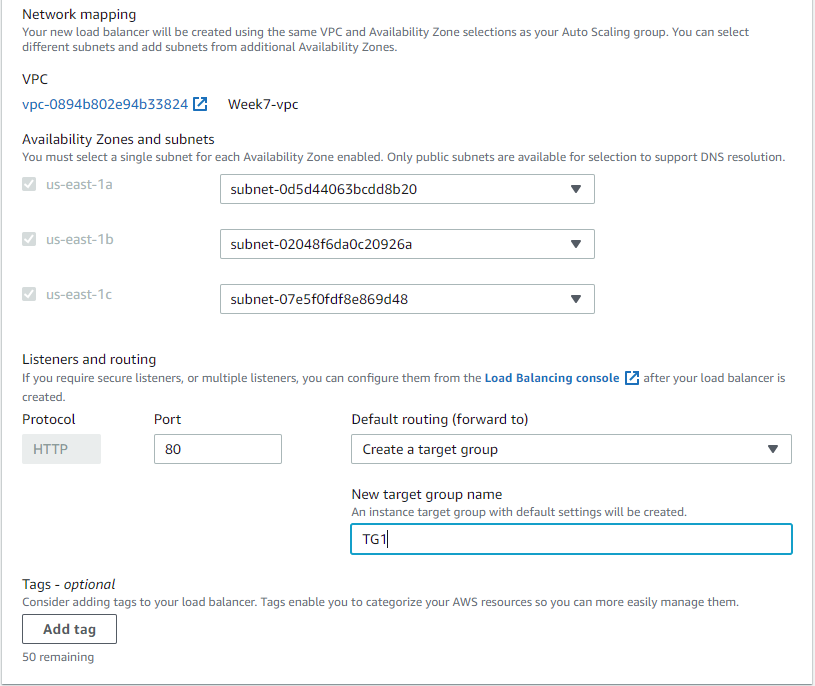
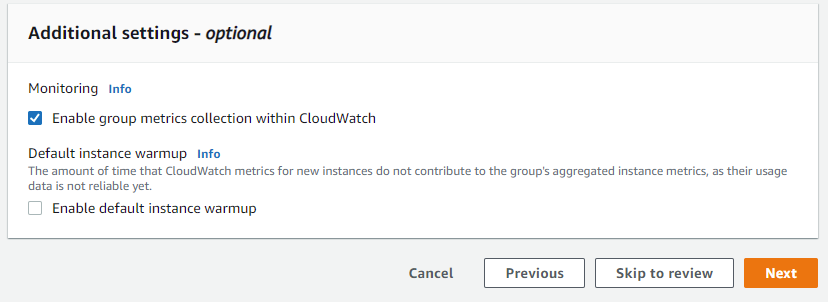
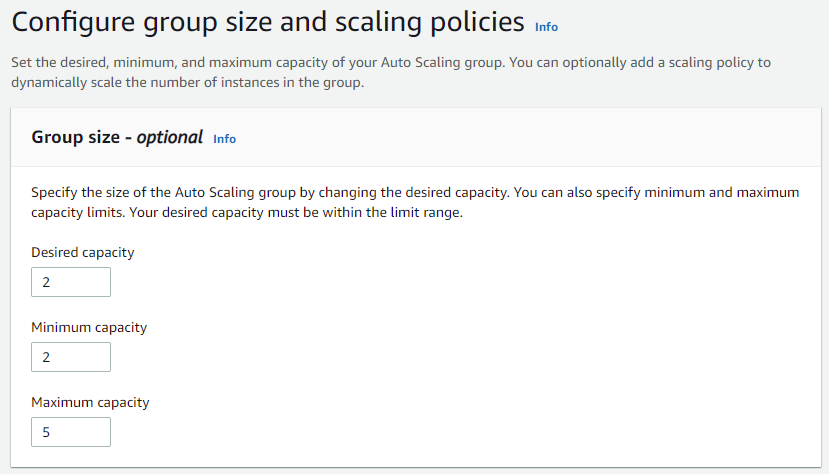
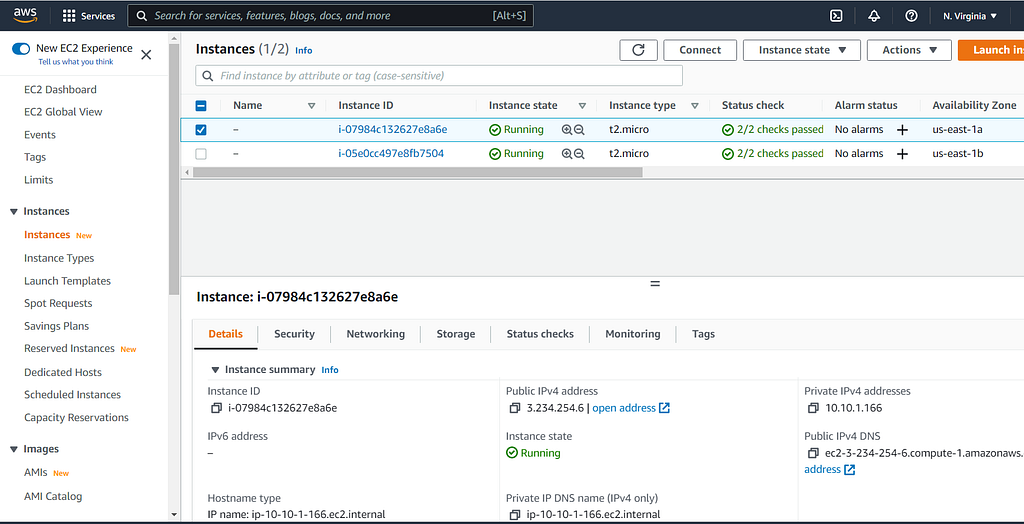
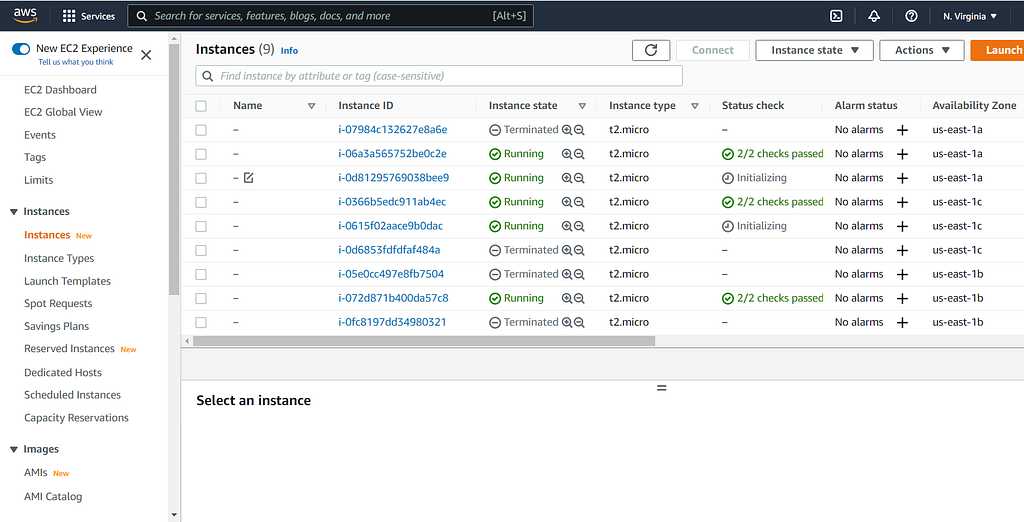
Now let's make sure our instances are working. Head over to the Instances pane:
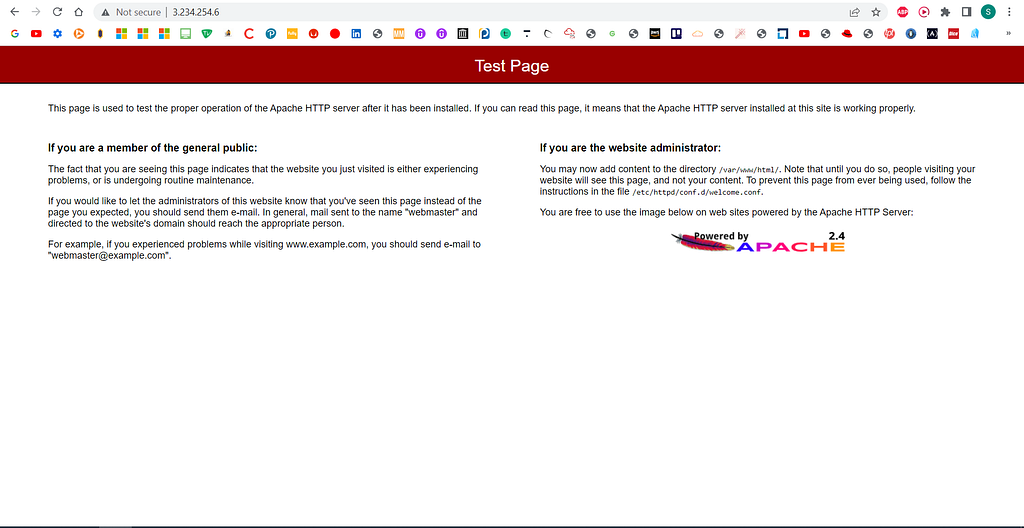
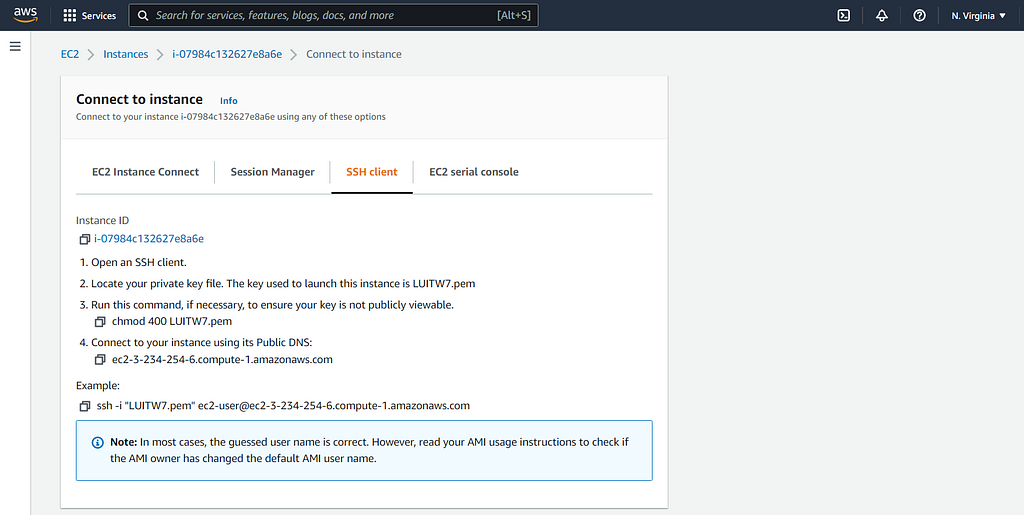
For the advanced portion of the project we've been delegated with the task of running a tool to stress our instance above 50% CPU. This will in turn create another instance to keep resources running and scalability high. After you have grabbed your SSH command from the connect page of either instance, login to your command line interface. I'm using PowerShell for this one. Note: this is an optional part of the project.
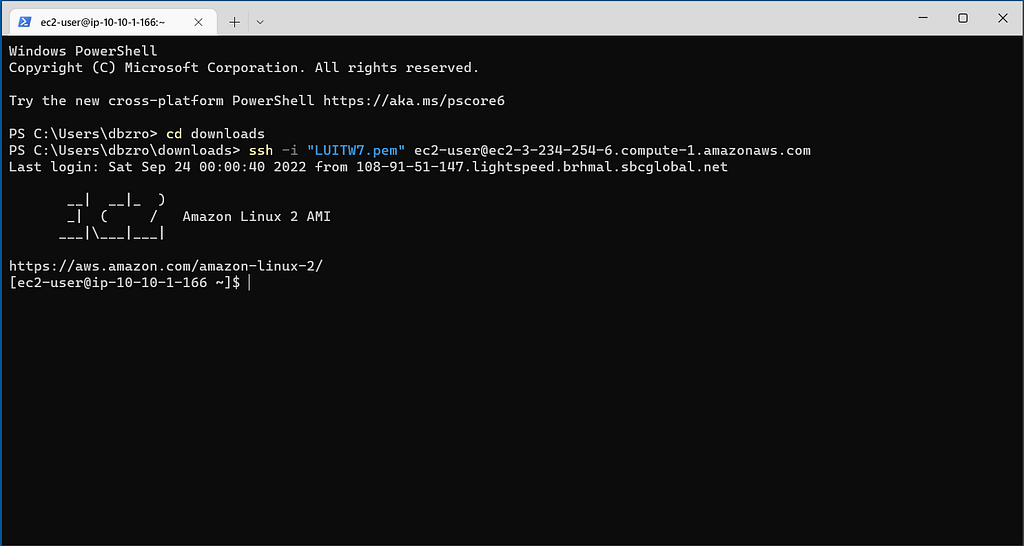
I ran into a roadblock trying to get the stress tool to work:
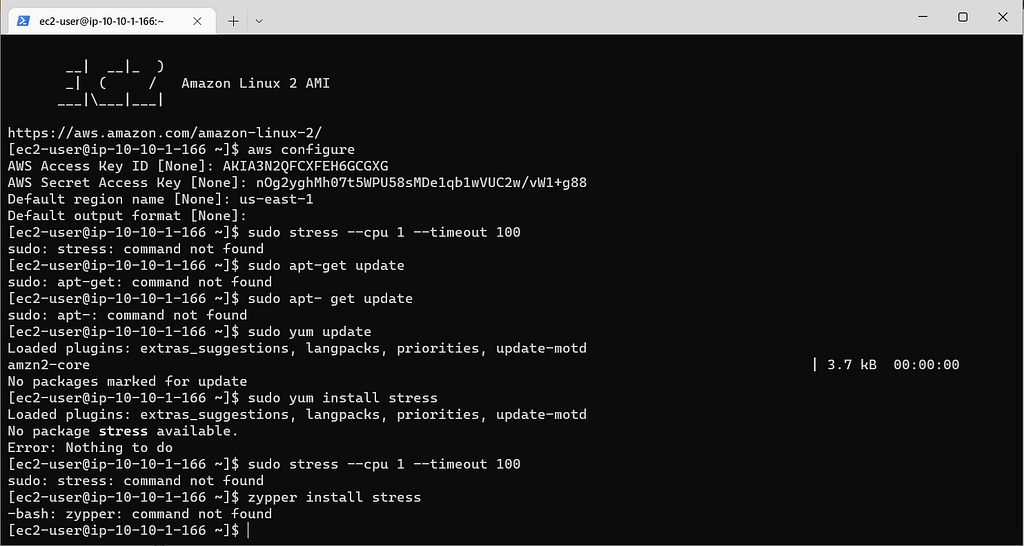
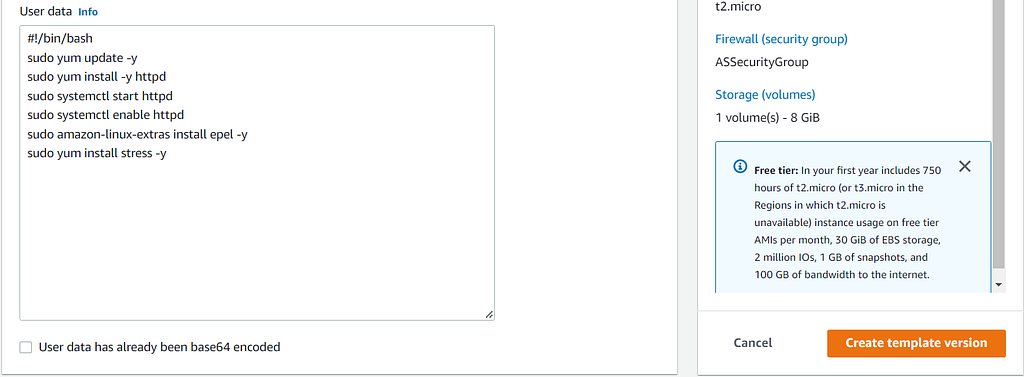
I tried switching between the SSH command and the AWS Configure command to try and see why my stress tool wasn't working. Then after some time, I checked my user-data and found out that the package has to be installed before the instance runs. I turned the auto-scaling group capacity down to zero and stopped my instances so that more wouldn't be created. I went to my launch templa te, clicked on the one I was using, went to actions, modify template, and updated the user-data:
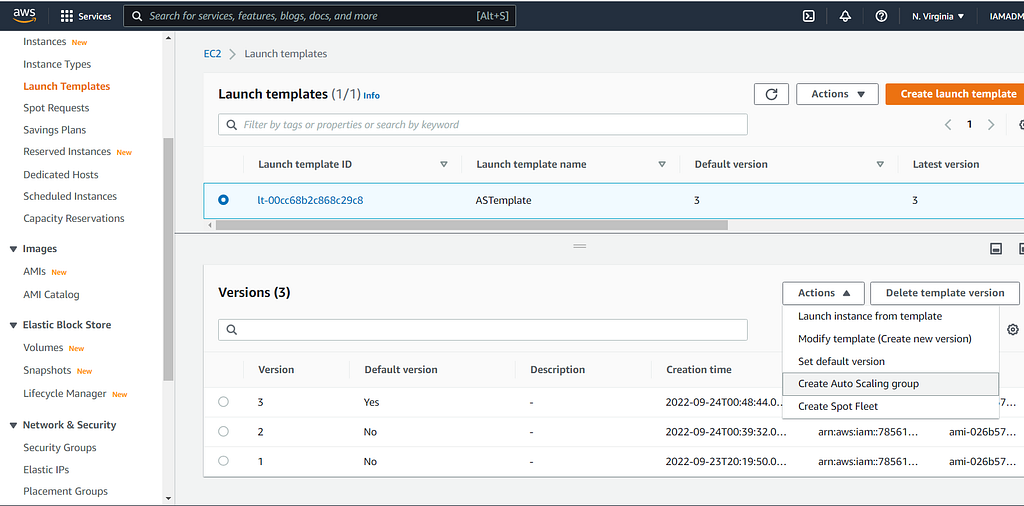
After updating the template I went down to actions and set default version. I changed it to the latest one that I created, which was 3:
Now, in my auto-scaling group, I increased the capacity to 2 for the desired and minimum fields. Afterwards, I restarted my instances, used the SSH command to get back into my instance, and ran the tool:

I headed over to CloudWatch to look at my graph:

This project was a fun one. A lot of the steps I over-thought which made it harder on myself. Things like the stress tool not working, which security groups go where, and the load balancer not having enough availability zones to operate. After some help from my cohort I managed to pull through and complete the project. Any feedback is welcome and I appreciate you all for stopping by!
Auto-Scaling in AWS was originally published in Towards AWS on Medium, where people are continuing the conversation by highlighting and responding to this story.
Comments
Post a Comment