Why isn't my ASP.NET Core app in Docker working?
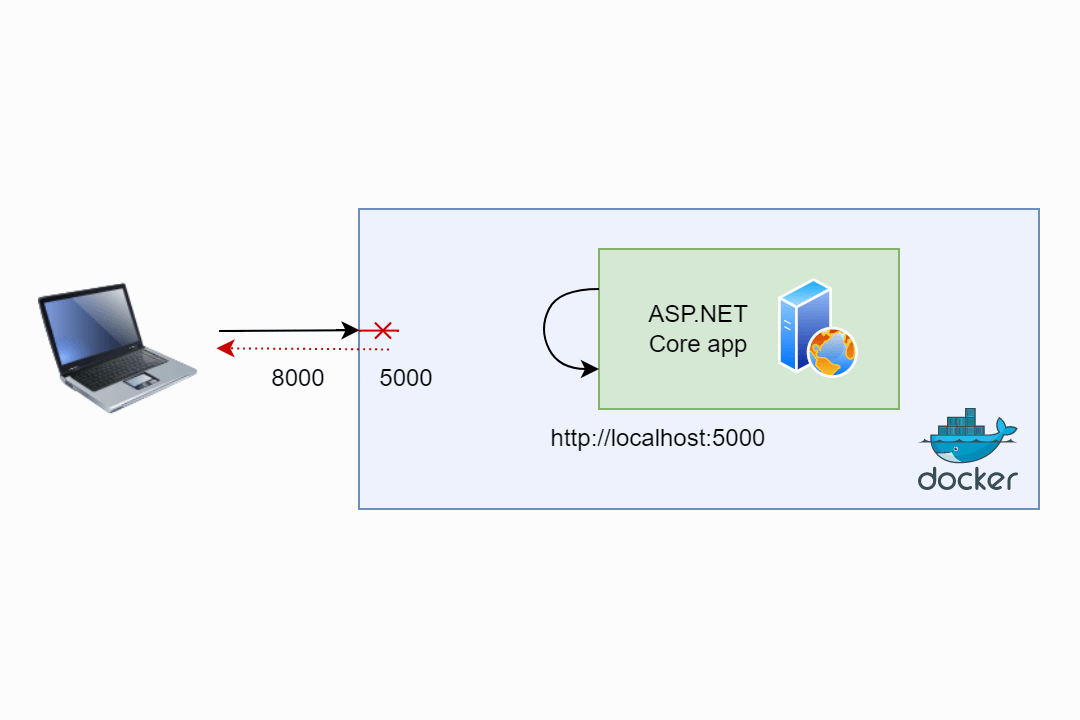
In this post I describe a problem I ran into the other day that had me stumped brieflyâ€"why doesn't my ASP.NET Core app running in Docker respond when I try and navigate to it? The problem was related to how ASP.NET Core binds to ports by default.
Background: testing ASP.NET Core on CentOS

I ran into my problem the other day while responding to an issue report related to CentOS. In order to diagnose the issue, I needed to run an ASP.NET Core application on CentOS. Unfortunately, while ASP.N ET Core supports CentOS, they don't provide Docker images with it preinstalled. Currently, they provide Linux Docker images based on:
- Debian
- Ubuntu
- Alpine
Additionally, while you can install CentOS in WSL, it's a lot more hassle than something like Ubuntu, which you can install directly from the Microsoft Store.
This left me with one obvious answer - build my own CentOS Docker image, and install ASP.NET Core in it "manually".
Creating the sample app with a Dockerfile.
I started by creating a sample web application using Visual Studio. I could have used the CLI to create the app, but I decided to use Visual Studio as I knew it would give me th e option to auto-generate the Dockerfile as well. This would save a few minutes.
I chose ASP.NET Core Web API, used minimal APIs, disabled https, enabled Docker support (Linux) and generated the solution:

This generates a Debian-based dockerfile by default (the mcr.microsoft.com/dotnet/aspnetcore:6.0 images are Debian based unless you select different tags), which looks like this:
FROM mcr.microsoft.com/dotnet/aspnet:6.0 AS base WORKDIR /app EXPOSE 80 FROM mcr.microsoft.com/dotnet/sdk:6.0 AS build WORKDIR /src COPY ["WebApplication1.csproj", "."] RUN dotnet restore "./WebApplication1.csproj" COPY . . WORKDIR "/src/." RUN dotnet build "WebApplication1.csproj" -c Release -o /app/build FROM build AS publish RUN dotnet publish "WebApplication1.csproj" -c Release -o /app/publish FROM base AS final WORKDIR /app COPY /app/publish . ENTRYPOINT ["dotnet", "WebApplication1.dll"] This Dockerfile uses the best practice of multi-staged builds to ensure your runtime images are as small as possible. It shows 4 distinct phases
mcr.microsoft.com/dotnet/aspnetcore:6.0 AS base. This stage defines the base image that will be used to run your application. It contains the minimal dependencies to run your application.mcr.microsoft.com/dotnet/sdk:6.0 AS build. This stage defines the docker image that will be used to build your application. It includes the full .NET SDK, as well as various other dependencies. This stage actually builds your application.FROM build AS publish. This stage is used to publish your application.base AS final. The final stage is what you would actually deploy to production. It is based on thebaseimage, but with thepublishassets copied in.
Multi-stage builds are always best-practice when you're deploying to Docker, but this one is more complex than it needs to be in general. It has additional stages to make it quicker for Visual Studio to develop inside Docker images too, using "fast mode". If you're only deploying to Docker, not developing in Docker, then you can simplify this file.
Creating a CentOS-based ASP.NET Core image
For my testing, I only needed to run the application on CentOS, I didn't need to build on CentOS, so that meant I could le ave the build stage as it was, building on Debian. It was only the first stage, base, that I would need to switch to a CentOS-based image.
I started by finding the instructions for how to install ASP.NET Core on CentOS. Each Linux distro is a little bit different, with some versions using package managers, others using Snap packages etc. For CentOS we can use the yum package manager.
Installing ASP.NET Core is thankfully, very simple. You need only to add the Microsoft package repository and install using YUM. Starting from the CentOS version 7 Docker image, we can build out ASP.NET Core Docker image:
FROM centos:7 AS base # Add Microsoft package repository and install ASP.NET Core RUN rpm -Uvh https://packages.microsoft.com/config/centos/7/packages-microsoft-prod.rpm \ && yum install -y aspnetcore-runtime-6.0 WORKDIR /app # ... remainder of dockerfile as before With that change to the base image, we can now build and run our sample ASP.NET Core app on CentOS using a command like the following:
docker build -t centos-test . docker run --rm -p 8000:5000 centos-test Which, when you run it and navigate to http://localhost:8000/weatherforecast, looks something like this:

Oh dear.
Debugging why the app isn't responding
I hadn't expected that result. I thought that it would be a simple case of installing ASP.NET Core, and the app would just work. My first thought was that I had introduced a bug somewhere that was causing the app to fail to start, but the logs printed to the console suggested the app was listening:
info: Microsoft.Hosting.Lifetime[14] Now listening on: http://localhost:5000 info: Microsoft.Hosting.Lifetime[0] Application started. Press Ctrl+C to shut down. info: Microsoft.Hosting.Lifetime[0] Hosting environment: Production info: Microsoft.Hosting.Lifetime[0] Content root path: /app/ Additionally, I could see that the app was also listening on the correct port, port 5000. In my Docker command I specified that Docker should map port 5000 inside the container to port 8000 outside the container, so that also looked correct.
I double checked the documentation at this point, to make sure I had the
8000:5000the correct way around, and yes, the format ishost:container
This all seemed rather odd. Presumably, the application wasn't receiving the request at all, but just to be sure, I bumped up the logging to Debug level and tried again:
docker run --rm -p 80 00:5000 ` -e Logging__Loglevel__Default=Debug ` -e Logging__Loglevel__Microsoft.AspNetCore=Debug ` centos-test Sure enough, the logs were more verbose, but there was no indication of a request making it through
dbug: Microsoft.Extensions.Hosting.Internal.Host[1] Hosting starting info: Microsoft.AspNetCore.Server.Kestrel[0] Unable to bind to http://localhost:5000 on the IPv6 loopback interface: 'Cannot assign requested address'. dbug: Microsoft.AspNetCore.Server.Kestrel.Core.KestrelServer[1] Unable to locate an appropriate development https certificate. dbug: Microsoft.AspNetCore.Server.Kestrel[0] No listening endpoints were configured. Binding to http://localhost:5000 by default. info: Microsoft.Hosting.Lifetime[14] Now listening on: http://localhost:5000 dbug: Microsoft.AspNetCore.Hosting.Diagnostics[13] Loaded hosting startup assembly WebApplication1 info: Microsoft.Hosting.Lifetime[0] Application started. Press Ctrl+C to shut down. info: Microsoft.Hosting.Lifetime[0] Hosting environment: Production info: Microsoft.Hosting.Lifetime[0] Content root path: /app/ dbug: Microsoft.Extensions.Hosting.Internal.Host[2] Hosting started So at this point I had two possible scenarios
- The app isn't working at all
- The app isn't correctly exposed outside of the container
To test the first case I decided to exec into the container and curl the endpoint while it was running. This would tell me whether the app was running correctly inside the container, at the port I expected. I could have used the cli to do this using docker exec ..., but for simplicity I used Docker Desktop to open a command prompt inside the container, and to curl the endpoint:

Sure enough, curl-ing the endpoint inside the container (using the container port, 5000) returned the data I expected. So the app was working and it was responding on the correct port. That narrowed down the possible failures modes.
At this point I was running out of options. Luckily, a word in the application logs suddenly caught my eye and pointed me in the right direction. Loopback.
ASP.NET Core URLs: loopback vs. IP Address
One of the most popular posts on my blog (two years after I wrote it) is "5 ways to set the URLs for an ASP.NET Core app". In that post I describe some of the ways you can control which URL ASP.NET Core binds to on startup, but the relevant section right now is titled"What URLs can you use?". This section me ntions that there are essentially 3 types of URLs that you can bind:
- The "loopback" hostname for IPv4 and IPv6 (e.g.
http://localhost:5000), in the format:{scheme}://{loopbackAddress}:{port} - A specific IP address available on your machine (e.g.
http://192.168.8.31:5005), in the format{scheme}://{IPAddress}:{port} - "Any" IP address for a given port (e.g.
http://*:6264), in the format{scheme}://*:{port}
The "loopback" address is the network address that refers to "the current machine". So if you access http://localhost:5000, you're trying to access port 5000 on the current machine. This is typically what you want when you're developing, and this is the default URL that ASP.NET Core apps bind to. So when you run an ASP.NET Core app locally, and navigate to http://localhost:5000 in your browser, everything works, because everyt hing is all coming from the same network interface, on the same machine.
However, when you're inside a Docker container requests aren't coming from the same network interface. Essentially, you can think of the Docker container as a separate machine. Binding to localhost inside the Docker container will mean your app is never exposed outside of the container, rendering it rather useless.
The way to fix this is to ensure your app binds to any IP Address, using the {scheme}://*:{port} syntax.
As noted in my previous post, you don't have to use
*in this pattern, you can use anything that's not an IP address orlocalhost, so you can usehttp://*:5000,http://+:5000, orhttp://example.com:5000etc. All of these behave identically.
By binding th e ASP.NET Core application to any IP address, the request "makes it through" from the host, so it can be handled by your app. We can set the URL at runtime when we run the Docker image, using for example
docker run --rm -p 8000:5000 ` -e DOTNET_URLS=http://+:5000 centos-test or we could bake it into the Dockerfile as shown below. The following is the complete final Dockerfile I used:
FROM centos:7 AS base # Add Microsoft package repository and install ASP.NET Core RUN rpm -Uvh https://packages.microsoft.com/config/centos/7/packages-microsoft-prod.rpm \ && yum install -y aspnetcore-runtime-6.0 # Ensure we listen on any IP Address ENV DOTNET_URLS=http://+:5000 WORKDIR /app # ... remainder of dockerfile as before FROM mcr.microsoft.com/dotnet/sdk:6.0 AS build WORKDIR /src COPY ["WebApplication1.csproj", "."] RUN dotnet restore "./WebApplication1.csproj" COPY . . WORKDIR "/src/." RUN dotnet build "WebApplication1.csproj" -c Release -o /app/build FROM build AS publish RUN dotnet publish "WebApplication1.csproj" -c Release -o /app/publish FROM base AS final WORKDIR /app COPY /app/publish . ENTRYPOINT ["dotnet", "WebApplication1.dll"] With this change we can re-build the Docker image, and run the app again with
docker build -t centos-test . docker run --rm -p 8000:5000 centos-test and finally, we can call the endpoint from our browser:

So the important take away here is:
When you build your own ASP.NET Core Docker images, make sure to configure the app to bind to any IP address, not just
localhost.
Of course, the official .NET Docker Images do that already, binding to port 80 by setting ASPNETCORE_URLS=http://+:80.
Summary
In this post I described a situation in which I was trying to build a CentOS Docker image to run ASP.NET Core. I described how I created the image by following the ASP.NET Core installation instructions, but that my ASP.NET Core app wasn't responding to requests. I walked through my debugging process to try to get to the root cause of the problem, and realised that I was binding to the loopback address. This meant the application was accessible from inside the Docker container, but not from outside it. To resolve the issue, I made sure to bind my ASP.NET Core app to any IP address, not just localhost.
Comments
Post a Comment